Conference Rooms & Reservations
Book Conference Rooms
View Conference Room Calendars
Use the following links to view the indicated conference rooms’ calendars. If a link brings you to a Google sign-in page, provide your CTPS e-mail address and password (for example, [email protected], My5ecretPassw0rd). To create or change conference room bookings, you must create or update a meeting/event, as described in a following section.
Manage Conference Room Bookings
You cannot directly change the calendar of a conference room to reserve time in it for your meeting. Instead, you must create an event and invite the room. The room checks its availability and accepts or declines the invitation accordingly.
To change a booking, you update the event that created the initial booking. The room again checks its availability and adjusts its own calendar if it can accommodate the requested time change.
To cancel a booking entirely, you can either remove the room from an event’s list of attendees or you can delete the event. The room will automatically free up the corresponding time in its calendar so that it is available to others.
If you need a room at a time when it is not available, you should view the schedule of the room (use either the tools for finding an available event time—described below—or open the room’s calendar for viewing) and find out the organizer of the conflicting event. Speak to that person to see if the event can be changed so that it no longer conflicts.
Add a room to an event
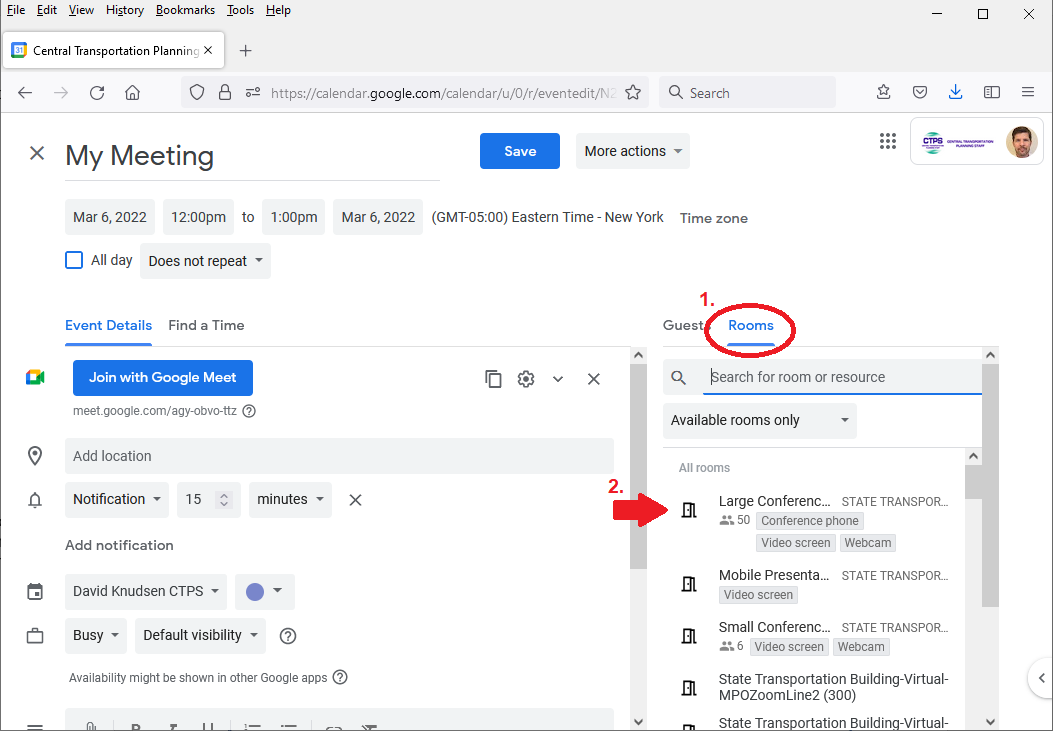
If your event already exists, you must edit it to book a room for it.
- Click the “Rooms” link to show a list of available rooms and other resources.
- Click the room whose time you want to reserve.
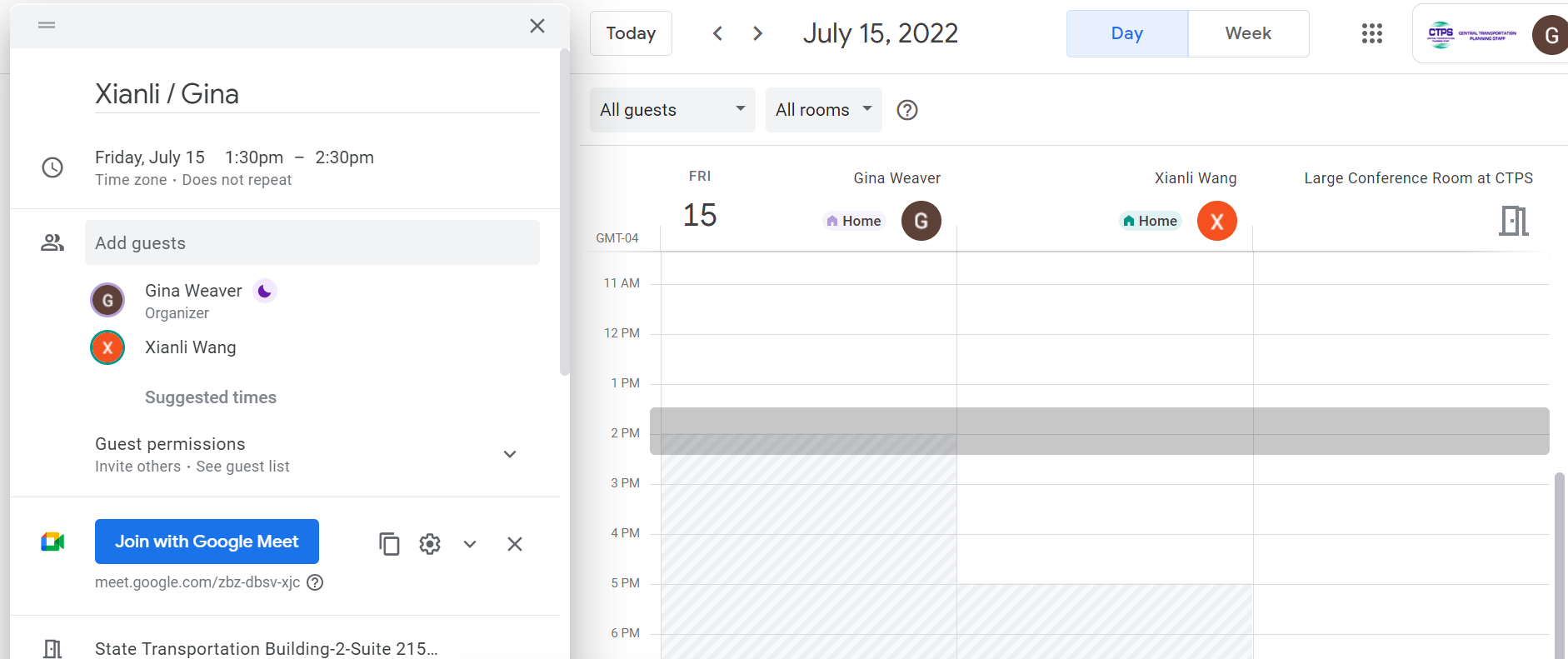
- Click the “Find a Time” link to show the calendars of all the meeting’s invitees, including the room, side by side, and to find a time available in common.
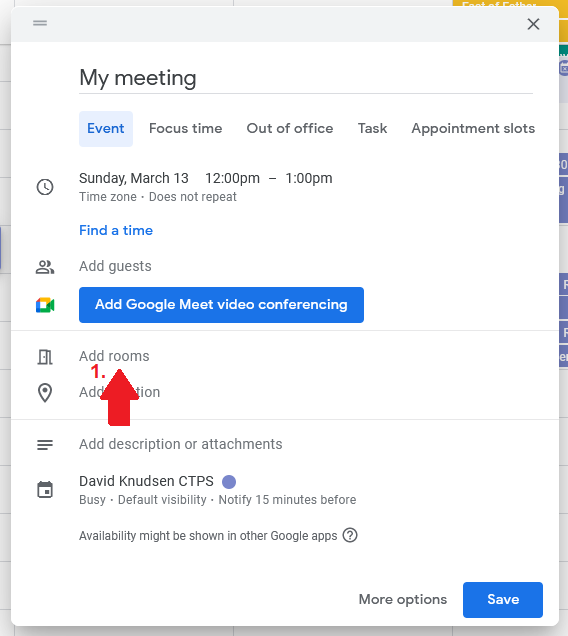
If your event is new, the process is similar.
- Click the “Add rooms” link to show a list of available rooms and other resources.
- Click the room whose time you want to reserve.
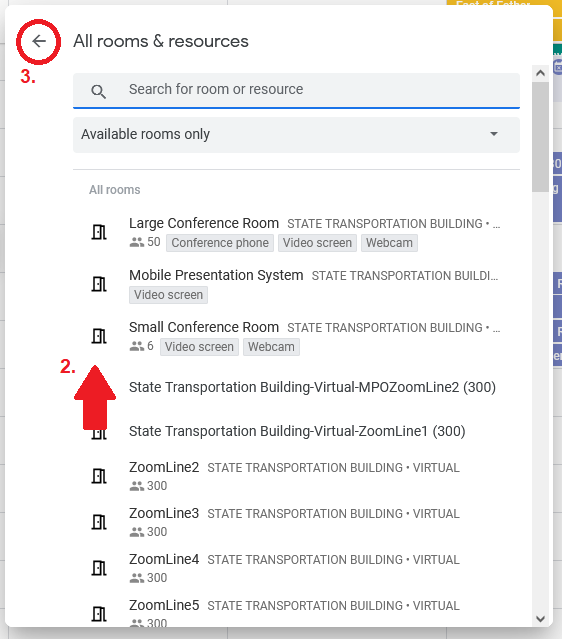
- Click the left arrow at the top left.
- Click the “Find a Time” link to show the calendars of all the meeting’s invitees, including the room, side by side, and to find a time available in common.
Cancel or change a previous booking
You can only clear or change a room booking that you created in the first place. If you need to have someone else’s room booking cleared or changed, ask that person to do it.
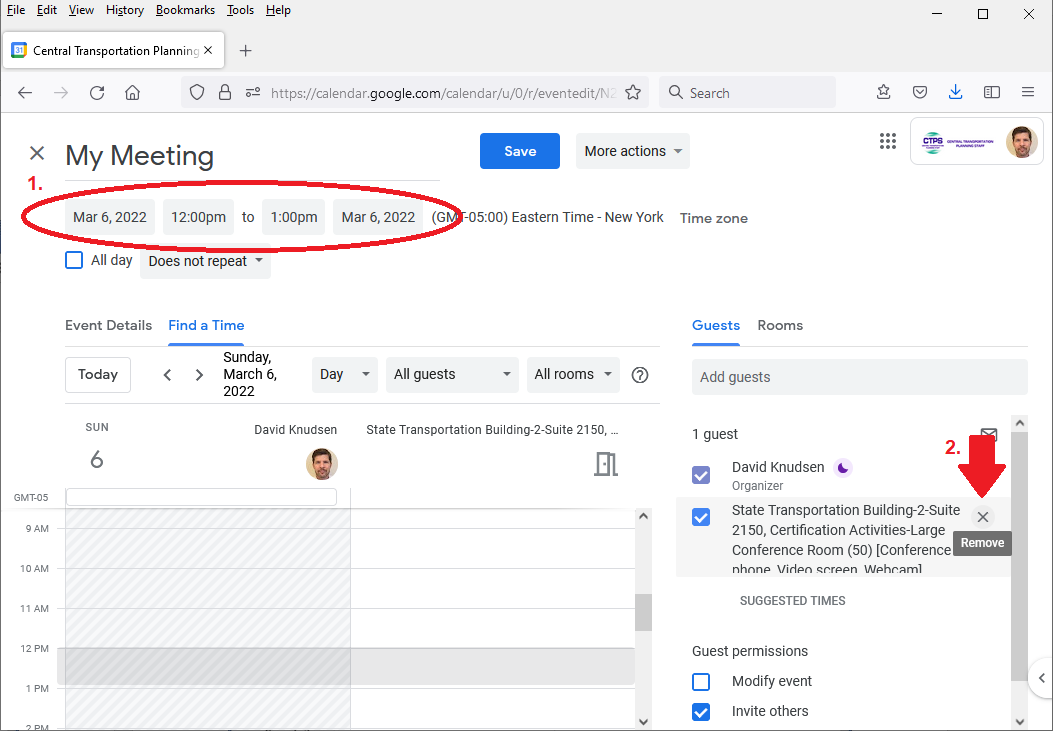
- To change the time or date of a booking, update the time or date of the event.
- To cancel a room booking, remove the room from the list of invitees.
View meeting room calendars in Google Calendar
You can browse rooms’ calendars without having to create or open an event.
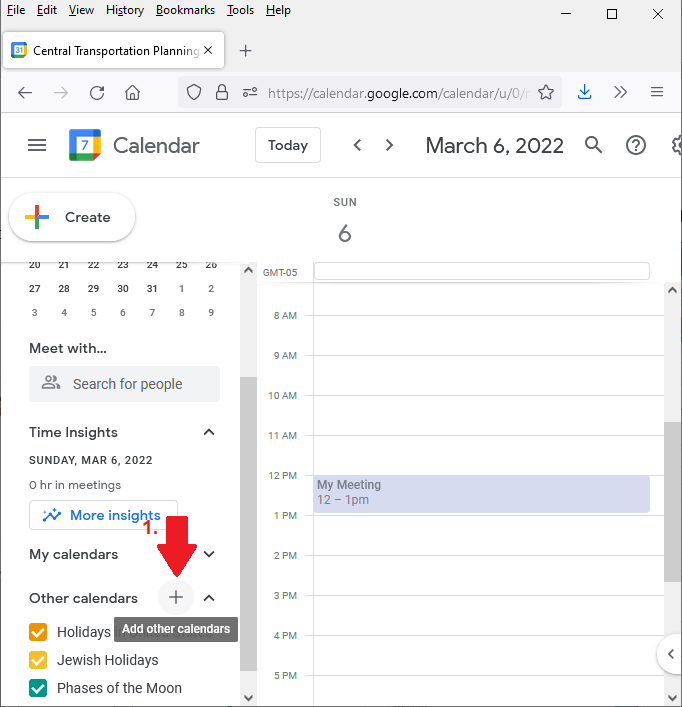
- Click the plus sign in your “Other calendars” list.
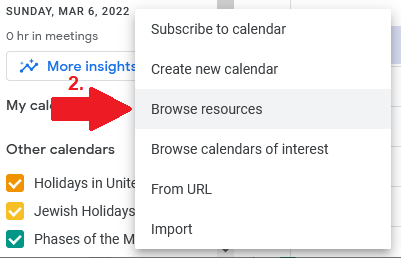
- Choose the “Browse resources” option from the pop-up menu.
- Select the check boxes next to the rooms whose calendars you want to add.
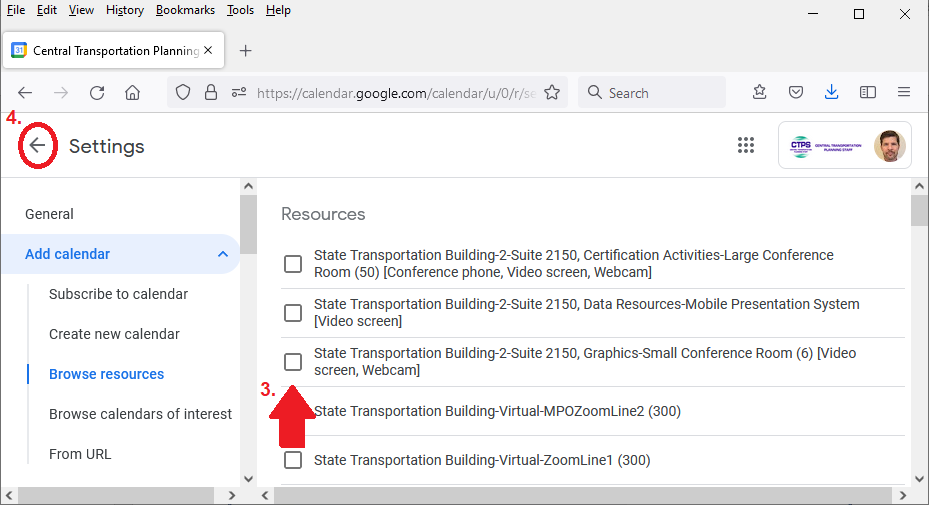
- Click the left-pointing arrow next to settings to record your selections and return to the calendar view.
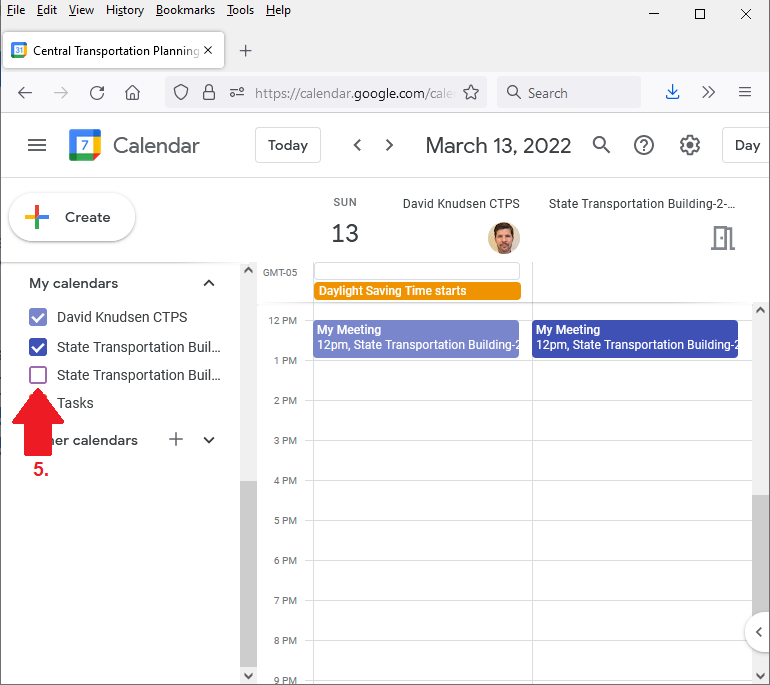
- The meeting room calendars will appear under the “My calendars” heading, even though you added them from the “Other calendars” heading. You can use the checkboxes to turn them on or off.