How to Submit a Purchase Order
- Start a New Purchase Order
a. Open Deltek Vision and sign in with your credentials
b. From the Navigation Bar, select “Purchase Order” and then click “New.”
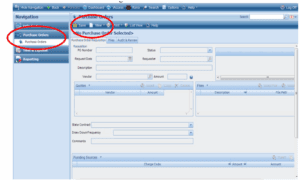
- Complete the Required Fields
Description – Provide a short summary of the purchase or expense (10 words or fewer).
Memo – Explain the need for this purchase or expense.
Vendor – Enter the vendor name (who the payment should go to).
Amount – Enter the total amount.
Quotes – Click insert and list quotes (vendor & amount), if applicable.
State Contract – Indicate if the purchase is under a state contract by selecting the contract.
Draw Down Frequency – If the purchase will be invoiced in increments, specify the billing schedule. - Upload Attachments
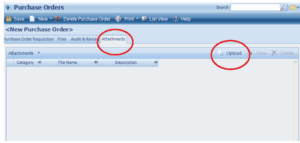
Go to the Attachments tab.
Click Upload (top right) to add quotes and/or other supporting documents.
In the category column, identify the attachment as a quote.
- Save and Submit
Click Save (top left).
Then click Submit (bottom of the page).
Once the purchase order is approved, you will receive an email notification confirming it is authorized for purchase.
If you don’t see the intended vendor or state contract in Deltek, please notify the Finance team at [email protected] so that it can be set up.