Security
How to Login to Microsoft Office 365 Using Multi-Factor Authentication (MFA)
Sign out of Gmail and Office on your web browser.
Open the Office application on your laptop or virtual machine.
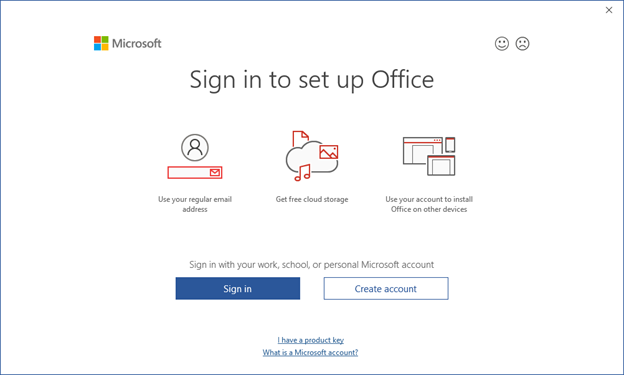
Once the application is opened, you will be prompted to sign in to Office.
Select “Sign in.”
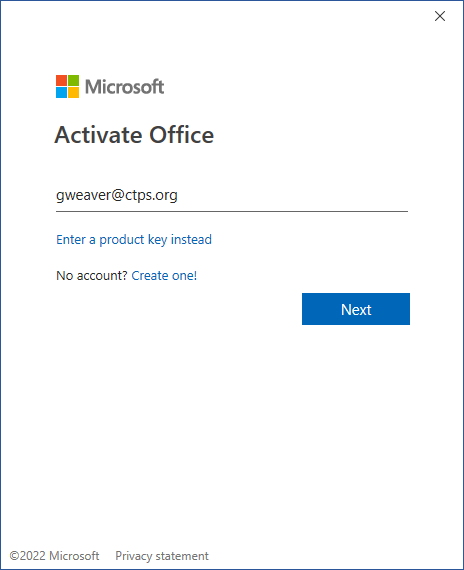
Enter your email address.
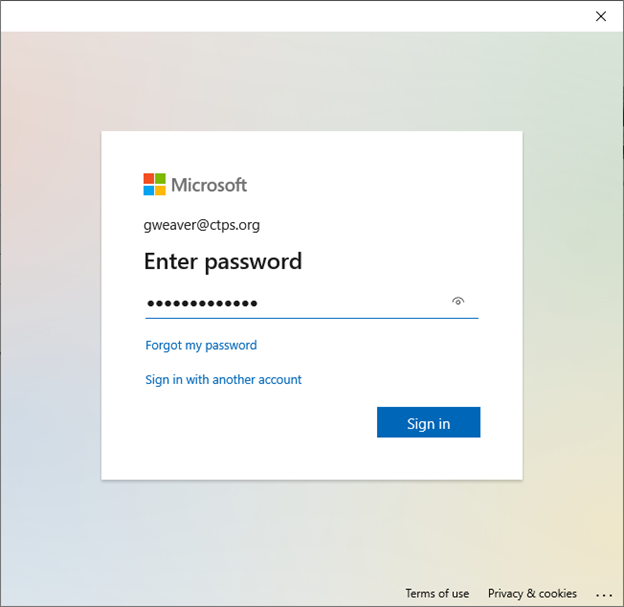
Enter your password.
The default authentication method is to use the free Microsoft Authenticator app. If you have it installed on your mobile device, select “Next” and follow the prompts to add this account. If you do not have it installed, there is a link provided to download it.
If you would rather use SMS messages sent to your phone, select “I want to set up a different method.” Microsoft 365 will ask for your mobile number, then send you an SMS message containing a six-digit code to verify your device.
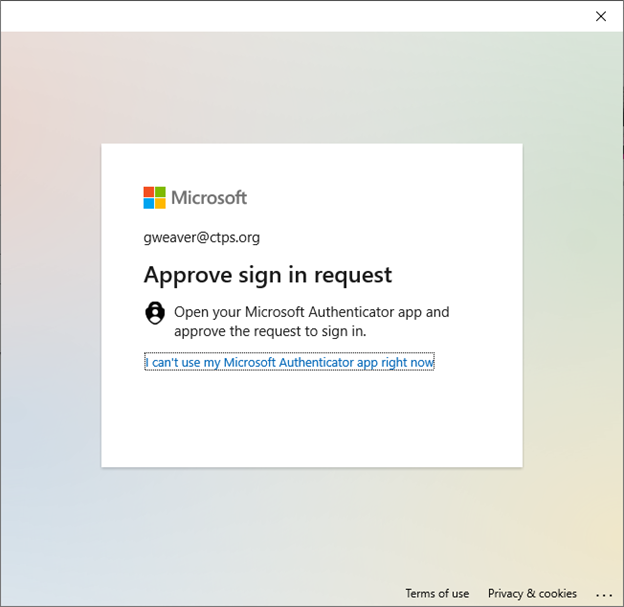
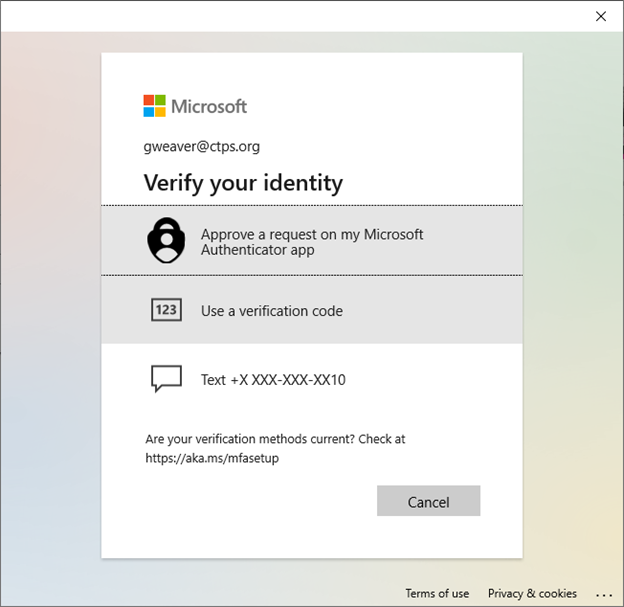
Have your phone available and open the Microsoft Authenticator app so you can approve the request.
If you cannot use the authenticator app, you can select “I can’t use my Microsoft Authenticator app right now.”
Select “Use a verification code” and then, in the authenticator app, select the Microsoft CTPS account and enter the one-time password code. Keep in mind that the code changes quickly, so have your phone readily available and enter the code as soon as you see it in the authenticator app.
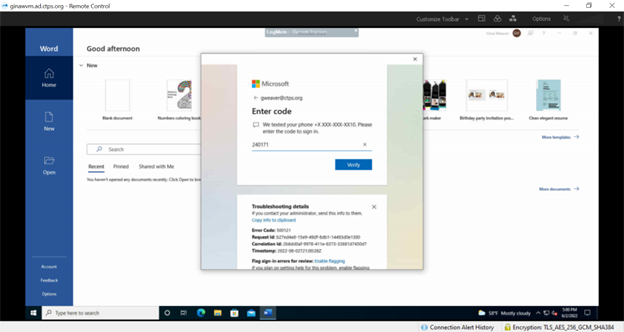
You can also have a code sent to you via a text message to your cell phone. If you select this option, enter the code that is sent to your phone.
Note: If you do not get authorized on the first try, you will be locked out after three failed attempts.
Enter the code and select “Verify.”
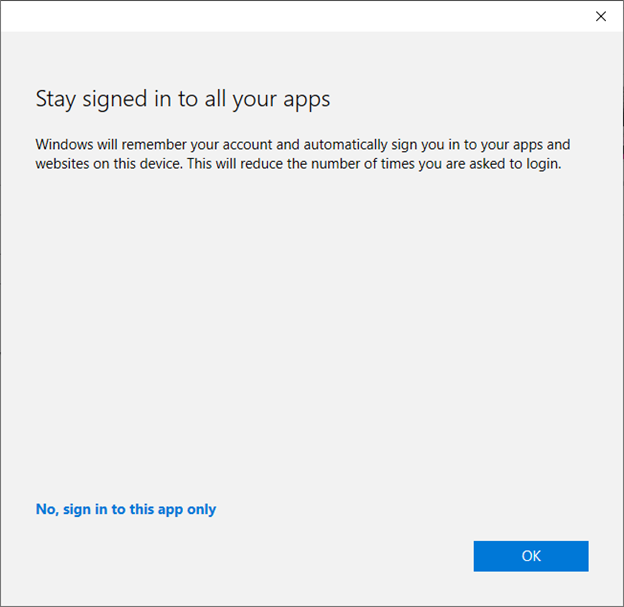
Select “OK.”
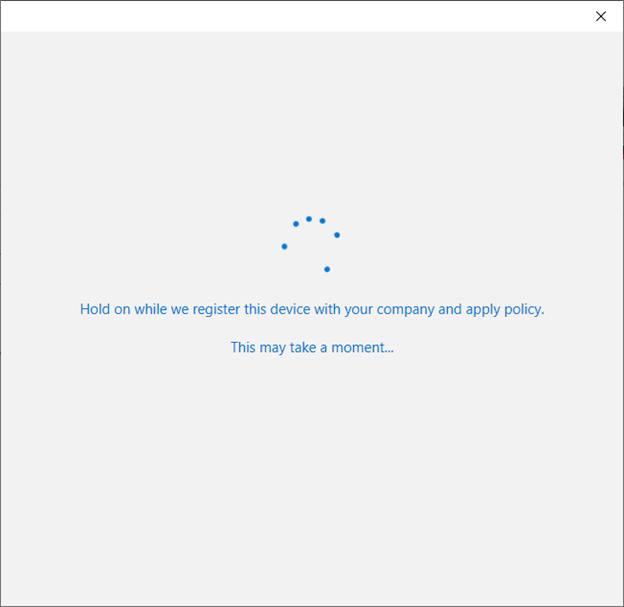
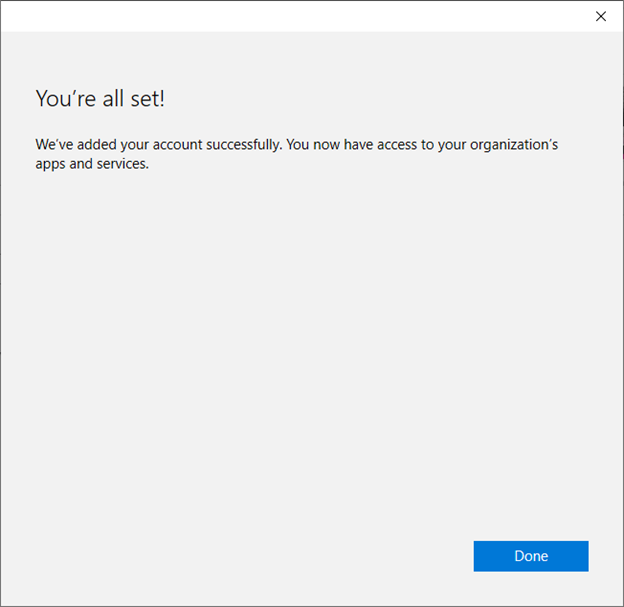
Select “Done.”
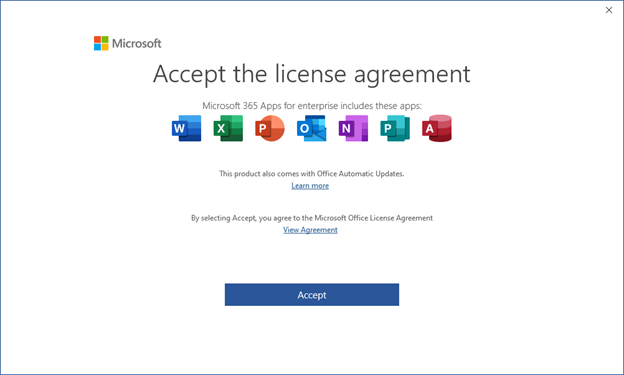
Select “Accept.”
Generally, you will only need the additional verification method the first time you sign into a new app or device, or after you have changed your password.
For more on how to set up multi-factor authentication for Office 365, please review the following two-minute video.
https://www.microsoft.com/en-us/videoplayer/embed/RE2MmQR?postJsllMsg=true