Timesheets & Time Off
Submit a Timesheet
Our agency uses Deltek Vision, the financial management system, to process weekly timesheets. Generally, all timesheets should be submitted and approved by 4:00 p.m. on Thursdays.
Admin Overhead Charge Codes and Descriptions
For a detailed description of overhead charge codes, click here.
If You Are Unable to Prepare Your Timesheet
If you are unexpectedly absent and cannot prepare your own timesheet by 9:00 AM Friday, you should get your hours to your manager. Your manager will prepare and submit your timesheet. If the manager is unavailable, please inform a member of the Finance group at [email protected].
Field Staff
If you are a field staff member, your supervisor will fill out your timesheet every week. The number of hours entered will be those listed on the schedule agreed upon the previous week. For this reason, should any assignment run longer or shorter than planned, or if it doesn’t happen as scheduled, please let the supervisor know that immediately. This is so that the changes can be reflected in the week’s timesheet which is submitted on Thursday afternoon.
Submitting Timesheets
Open Internet Explorer or Microsoft Edge. As of June 2024, Deltek software works ONLY in Internet Explorer or Microsoft Edge.
Enter https://deltek.mapc.org/visionclient
Click on “Click here to continue…” link
If this is your first time using Deltek, enter your user ID: first initial, last name (system will automatically make it all Caps). Leave Password Blank.
You will be prompted to change your password on your first login. If this is not your first time, your username should appear, and you will only have to enter your password.
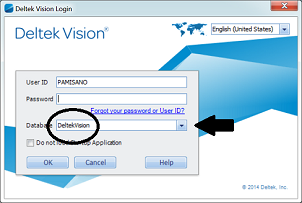
Make sure that DeltekVision appears in the Database field. If it does not, select it from the drop-down menu. Click ok.
On the left side, there is a Navigation menu. Click on the Time & Expense Tab.
Note: Your screen may look different from those used in the screenshots.
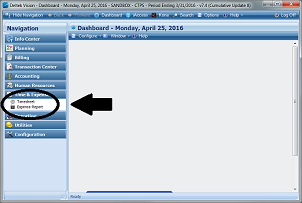
Click on Timesheet.
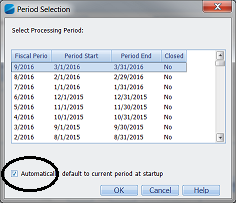
Choose the current processing period.
Check the box that says “Automatically default to the current period at startup.”
Click on the Grant/Contract cell and type in the funding source for the project. Example: “1518” or “3CPL.” For sick time, vacation time, or discretionary, just type in “Sick,” “Vac,” or “Disc.”
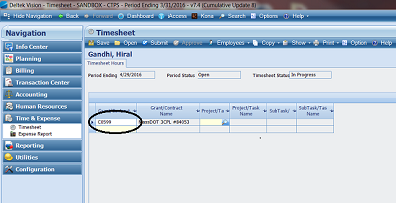
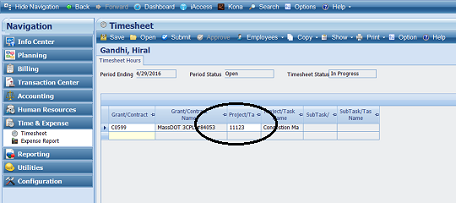
In the Project/Task cell, type in project number or name. Example: 11123
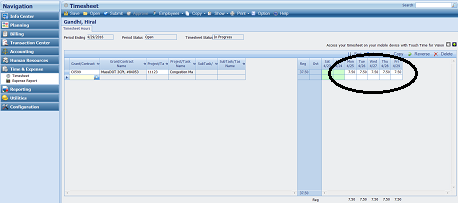
Enter the hours worked in the cells below the days and dates. Repeat steps 11-13 for each grant/project you are charging.
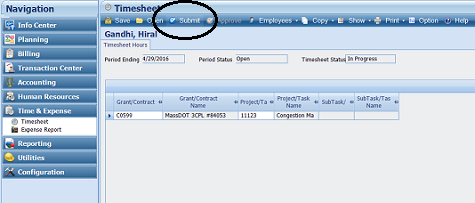
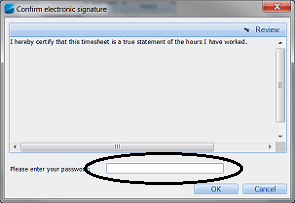
After entering your hours, click the submit button, enter your password, and press OK. Your timesheet will then be submitted to your manager for approval.
Request Discretionary Leave
Discretionary leave is granted so that you may take care of personal matters during the normal business day. It’s different from vacation leave in that it does not require advance approval. However, if you know in advance that you may need to use discretionary time, you should provide advance notification by filling out the Leave Request Form in Deltek. Instructions are provided below.
Once you have notified your supervisor, you should update your Google calendar and chat status to indicate that you will be out of the office and turn on your email autoresponder to do the same.
If you need to take discretionary leave unexpectedly, follow the procedures for How To: Provide Notification of Unexpected Absence.
Watch an instructional video on how to submit the form through Deltek. (Video does not play back well within LogMeIn connections. For best performance, copy and paste this video URL into a browser running on your local computer: https://www.youtube.com/watch?v=1gXT4_LNndE&feature=youtu.be)
Request a Vacation Day
To request vacation time, you must complete a leave request in Deltek. Reminder: Deltek will only open in Internet Explorer or Edge.
Below is a link to an instructional video on how to fill out the Planned Leave Requests form in Deltek. The Deltek Planned Leave Requests form takes the place of the old Leave Request Form.
Deltek Vacation Leave Request Instructional Video
(Video does not play back well within LogMeIn connections. For best performance, copy and paste this video URL into a browser running on your local computer: https://www.youtube.com/watch?v=1gXT4_LNndE&feature=youtu.be)
When to Submit the Vacation Request Form
You should submit a leave request to your group manager as far in advance of your vacation as possible. The minimum amount of notice required depends on circumstances.
Use of one day or less: You do not need an approval for one day or less. However, you need to notify your group manager and update your Google calendar. If vacation leave is used in the middle or at the end of a business day, you must inform your manager before you leave and update your Google calendar.
Use of more than one successive day: You must submit a Planned Leave Request form in Deltek at least two business days prior to your first requested vacation day. Instructions for submitting a Planned Leave Requests form can be found on the Intranet and by clicking here. (Video does not play back well within LogMeIn connections. For best performance, copy and paste this video URL into a browser running on your local computer: https://www.youtube.com/watch?v=1gXT4_LNndE&feature=youtu.be)
Use in circumstances in which discretionary or sick time is ordinarily used: It is possible for circumstances to arise in which you must use vacation time to cover an unexpected absence. When vacation time is used for that purpose, the requirement to submit a Planned Leave Requests form is waived. However, you should inform your manager and update your Google calendar as you would typically do when using discretionary or sick time.
Watch an instructional video on how to submit the form through Deltek. ( Video does not play back well within LogMeIn connections. For best performance, copy and paste this video URL into a browser running on your local computer: https://www.youtube.com/watch?v=1gXT4_LNndE&feature=youtu.be)
Vacation, Discretionary, or Sick Time Advances
Advances of vacation, discretionary, or sick time are not given. You must use discretionary time or vacation time if you become ill and do not have enough sick time to cover your absence. You must take administrative leave without pay if you do not have enough discretionary or vacation time to cover the absence. This policy applies regardless of the proximity of the day when additional leave time will be accrued. For example, if you become ill on a Monday that happens to be the last day of a month, you may not use sick time accrued on Tuesday to cover Monday’s absence.
Provide Notification of Unexpected Absence
Employees should notify their supervisor as soon as reasonably possible of a delay in reporting for work, taking unexpected leave time in the middle or at the end of the day, or of an absence for any reason. Employees are also strongly encouraged to update their Google calendar and chat status to indicate that they are out of the office and turn on their email autoresponder to do the same.
When unexpected absences related to sick leave cover five (5) or more work days, the employee shall furnish written verification of the nature and dates of illness from a health care provider.
Tip for supervisors: If a staff member is out more than three (3) consecutive days, please send a brief update email to [email protected] because additional time-sensitive support or benefits may be appropriate to activate.
Check Leave Time and Accruals Usage
Check Leave Time and Accurals Usage
Use the guide to check your leave balances in Deltek. There are two ways that you can view your leave time accruals and usage. As of January 2018, Deltek software ONLY works in Internet Explorer.
Click here to download and print a PDF of these instructions.
View leave time in Time and Expense module
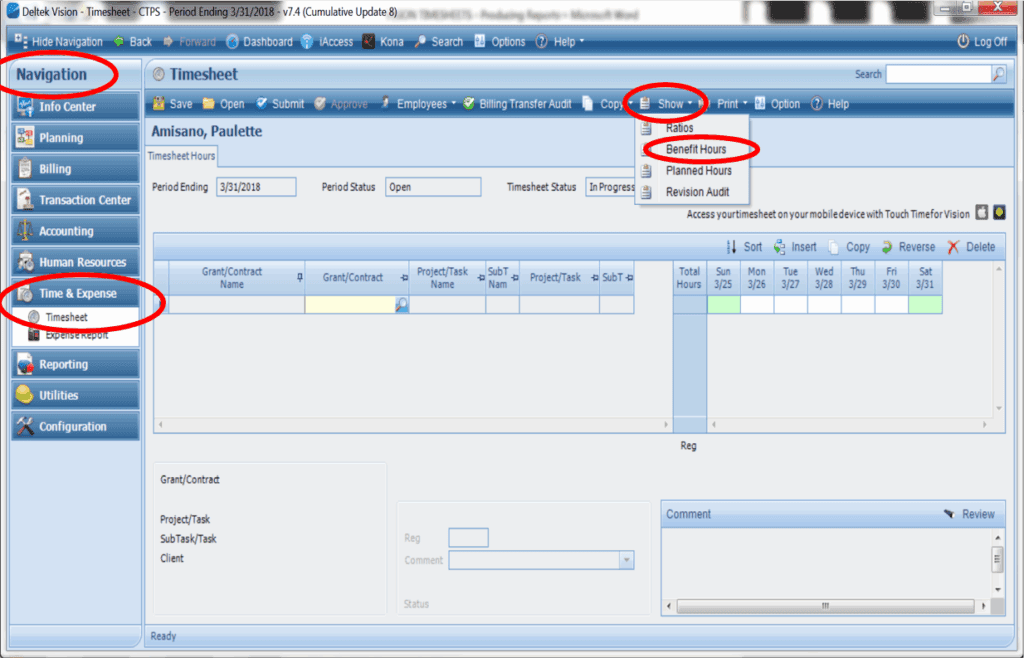
- Under Navigation, click on the Time & Expense module.
- Click on Timesheet and your current week’s timesheet will open.
- Click on “Show” Tab in the menu bar.
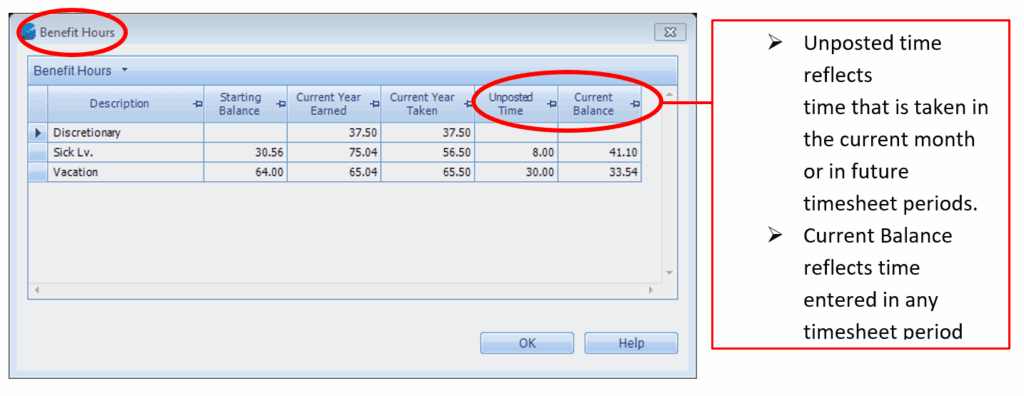
- Click on “Benefit Hours” and the report generated will report your current balances.
Hours reflected include hours entered in any timesheet period; past, present, and future.
View leave time in the Reporting module
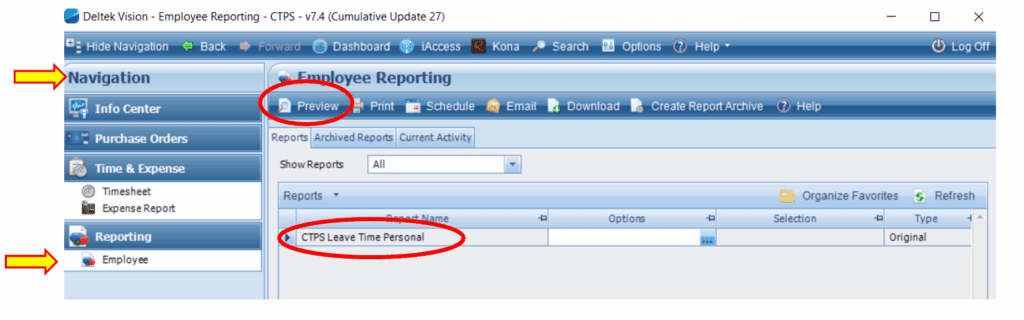
- Under Navigation, click on the Reporting module.
- Click on Employee.
- Only 1 Report will be available “CTPS Leave Time Personal”.
- Click on Preview in the menu bar at the top and the report will generate.
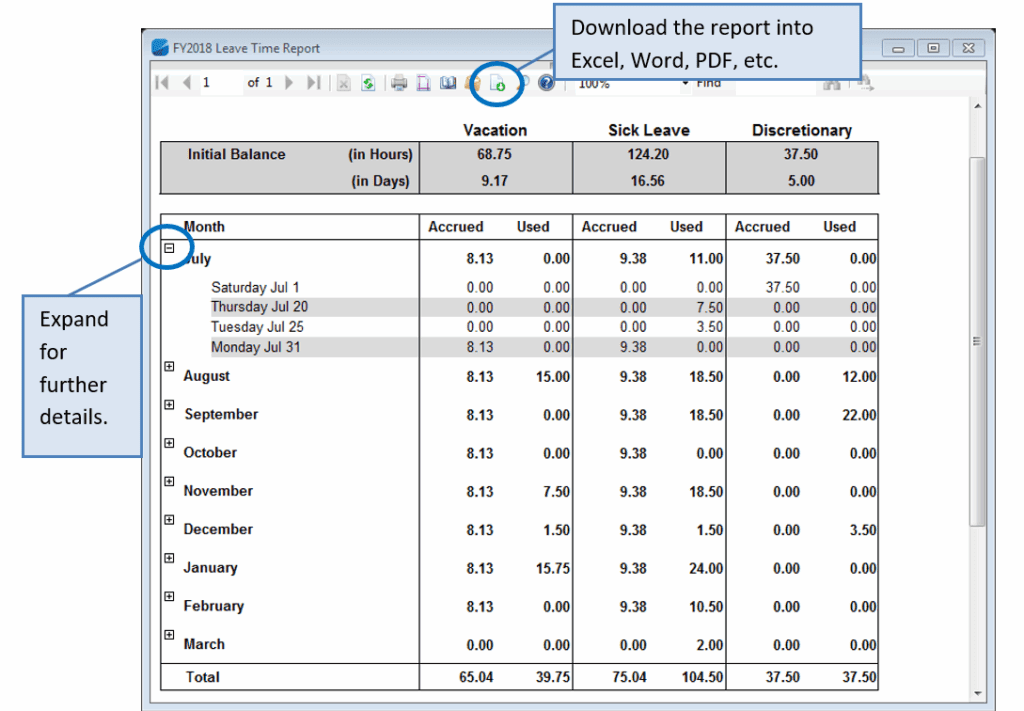
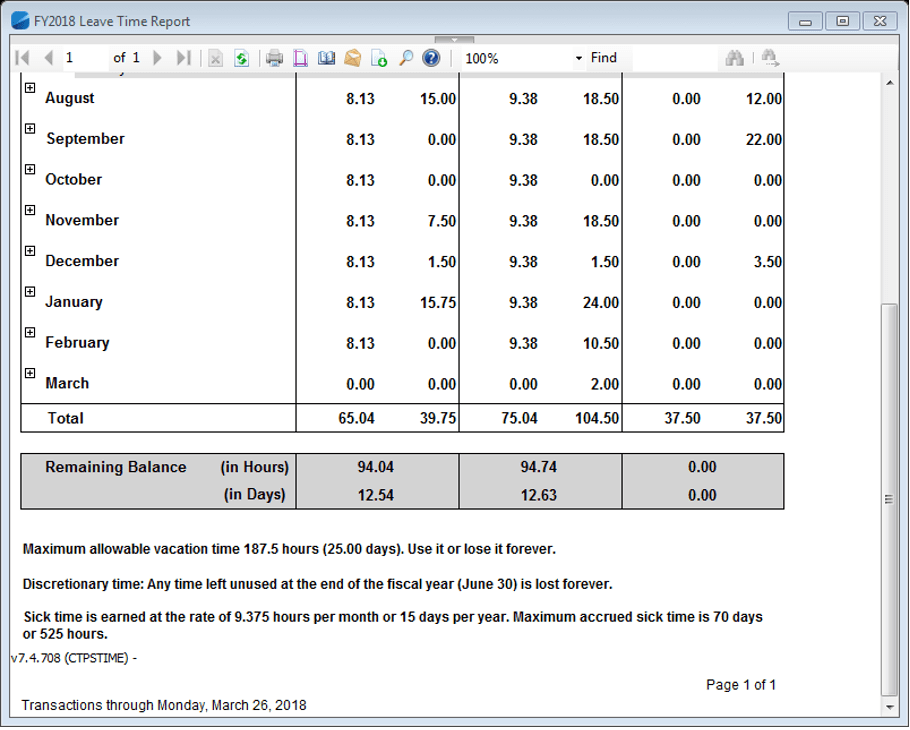
- This report lists the current fiscal year accruals and usage by category (sick, vacation, and discretionary).
- This report can be printed or downloaded into pdf, excel, or other formats.
- In the report, clicking on the + will expand and provide further details.
- Remaining balances and accumulation limits are shown at the bottom of the report.
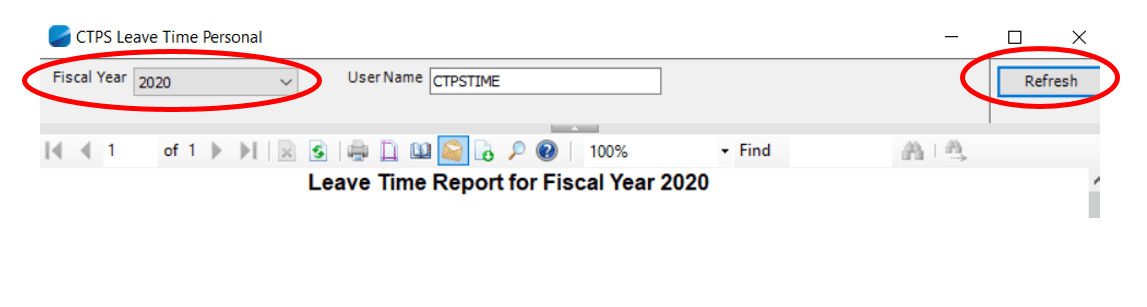
To view prior years, click on the small arrow at the top of the report.
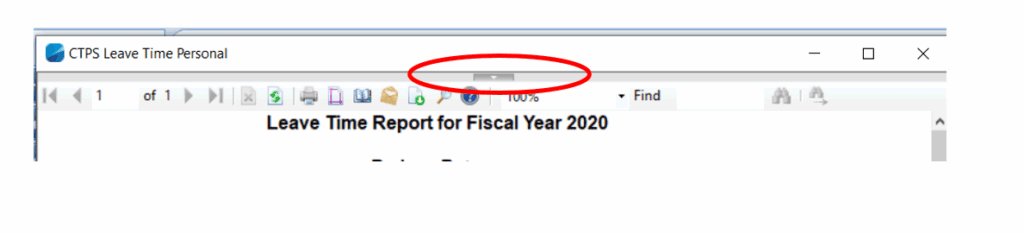
Click on Refresh, and the new report will be generated.