Use Common Phone Functions
How to Access The OfficeSuite Desktop App on Your Desktop for the First Time
From your desktop, log in to we.windstream.com
Log in with your username (CTPS Email Address)
Log in with your password
Select the Downloads tab
Download the OfficeSuite Desktop App
How to Login to the OfficeSuite Desktop App
Once the OfficeSuite Desktop app has been installed on your computer, select the WeConnect app installed on your computer and open it. Log in with the Windstream credentials that you created. The username is your CTPS email address. The password will be the password you assigned to your account.
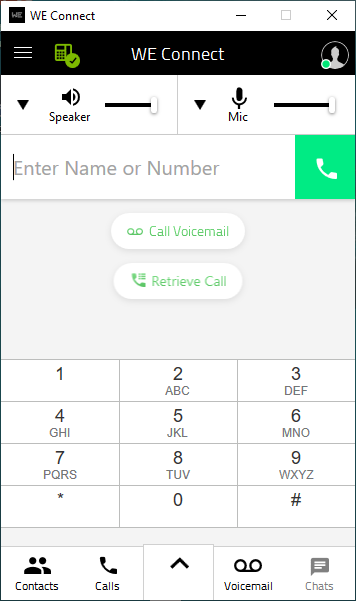
Once you log in, select the phone icon on the top left-hand side of the app. This should prompt you to register your app and to set a PIN. Once you have completed those steps, your app will be active and ready to make and receive calls and access your voicemail.
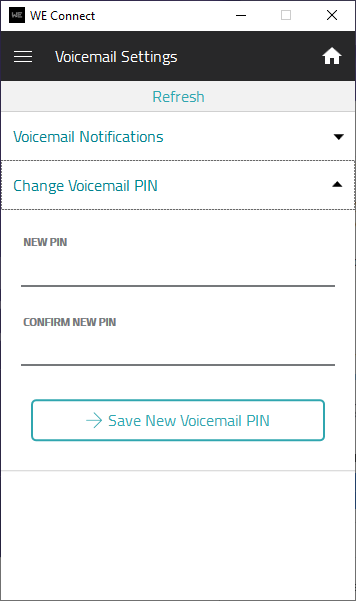
You will need to set a separate PIN for your voicemail. Select the menu at the top left-hand side of the app and select voicemail settings. Select Change Voicemail PIN and enter in your PIN and select save new voicemail PIN.
How to Access the We Connect OfficeSuite App on Your SmartPhone
You should have received an Email from Windstream inviting you to download the Windstream Mobile App. If you have received this email, please follow the following instructions if you wish to install the Windstream We Connect app on your smartphone.
If you want to download the app onto your smartphone, search for We Connect by Windstream in the play store on Android or the app store on iOS and download it to your computer.
Log in with your Windstream credentials.
Username (CTPS Email Address)
Password
Select the … button on the bottom right-hand side of the screen from the app and select OfficeSuite UC to use the softphone app on your smartphone.
How to Forward Your Calls to Your Cell Phone
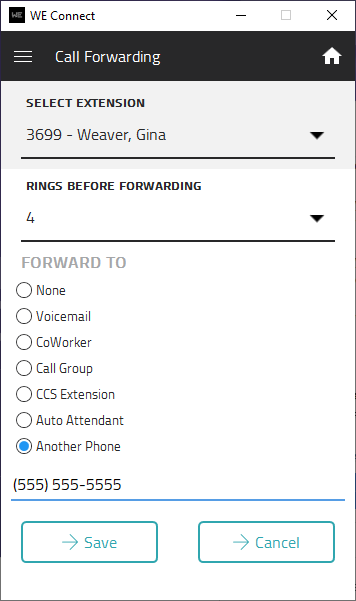
If you would like to forward your work phone to your cell phone, you can select My Call Forwarding under the menu at the top left-hand side of the app. Change the rings before forwarding to 4, select another phone, enter your phone number, and select save.
How to Access Phone Settings
Select the dial pad button and select Call VoiceMail. When you call your VoiceMail, you can record your name for the dial-by-name directory from the main line. You can also change your voicemail message and change your PIN.