Document Accessibility Guide: Document Language
Setting the document language helps screen readers pronounce words correctly. The language should be set to English (US) on the templates. When exporting a Word document to a PDF, the language should automatically transfer.
In Microsoft 365 applications like Word and PowerPoint, users can change the language setting at the bottom of the application, beside the current page and word count. Click on the language. A modal window will appear and allow you to change the document language.

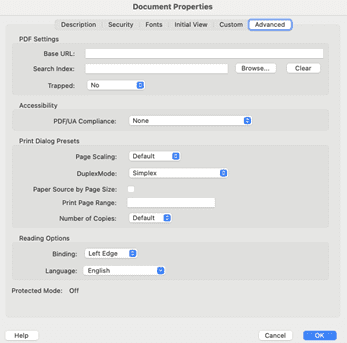
In Adobe PDF, if the language has not been set in the previous application, the Accessibility Checker will flag this as an error. Users can change the document language in Adobe by going to File > Properties > Advanced tab panel. Under “Reading Option,” there is a Language drop-down menu. Here, select English.