Approve Timesheets in Deltek
- Log into Deltek, as if you are entering a timesheet.
- Click on the Employees tab, and you will get a drop down box with 2 options
- Select Employees
- Floor Check

- Select Floor Check
- On the floor check, you will see a summary of all timesheets, and their current status. You are interested in timesheets that are missing, in progress or submitted, which now need your review & approval.
- Select All or Check individual employees
- Select Open Timesheet
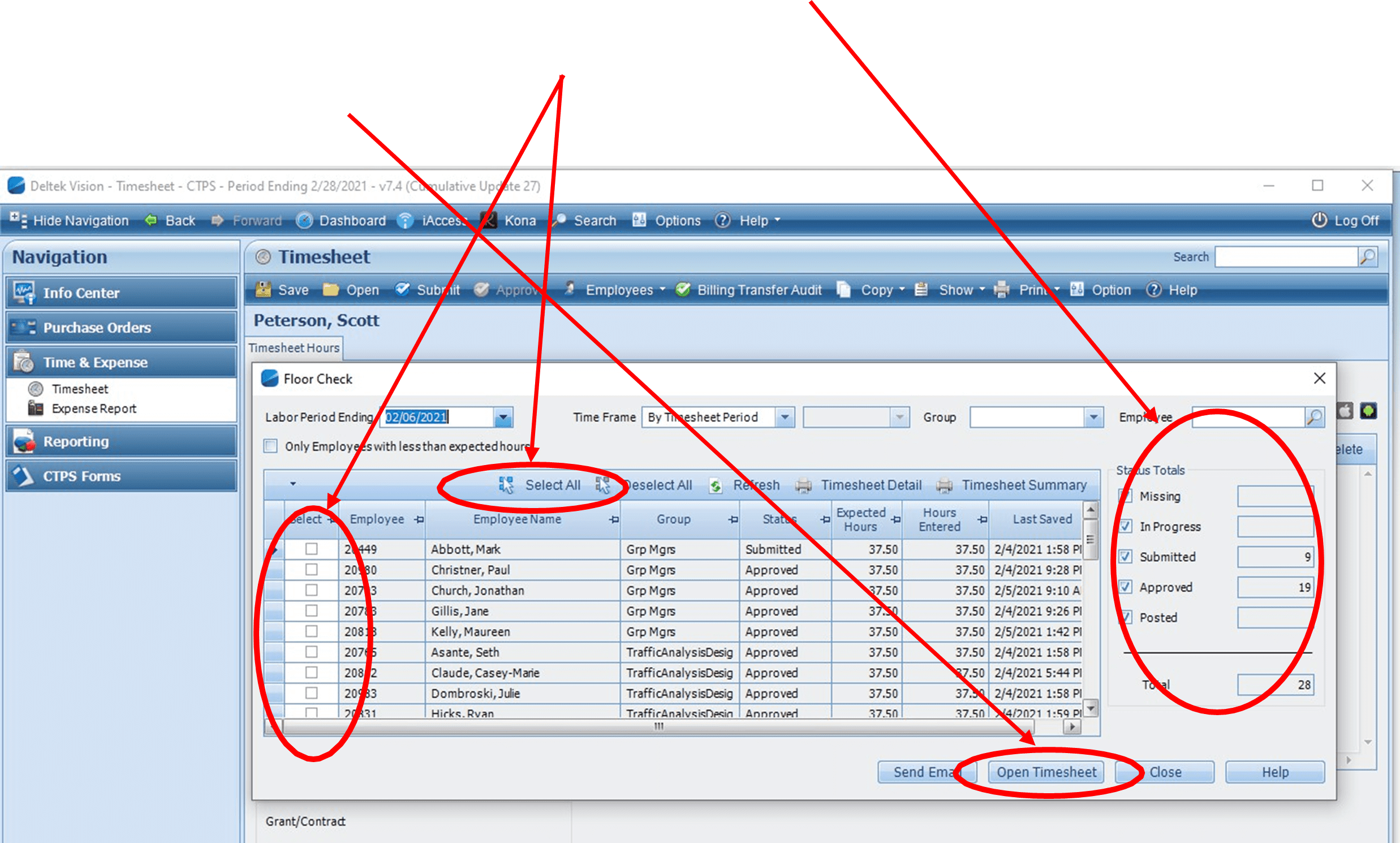
- If you select 1 timesheet, that will open. If you select a group of timesheets, all selected timesheets will open, and you will view the first timesheet in the group.
- As you review timesheet…make sure the weekly hours are 37.5 (for full time employees), make sure that footnotes are used to give additional detail on: Professional Development, Miscellaneous Admin & Flex Holiday.
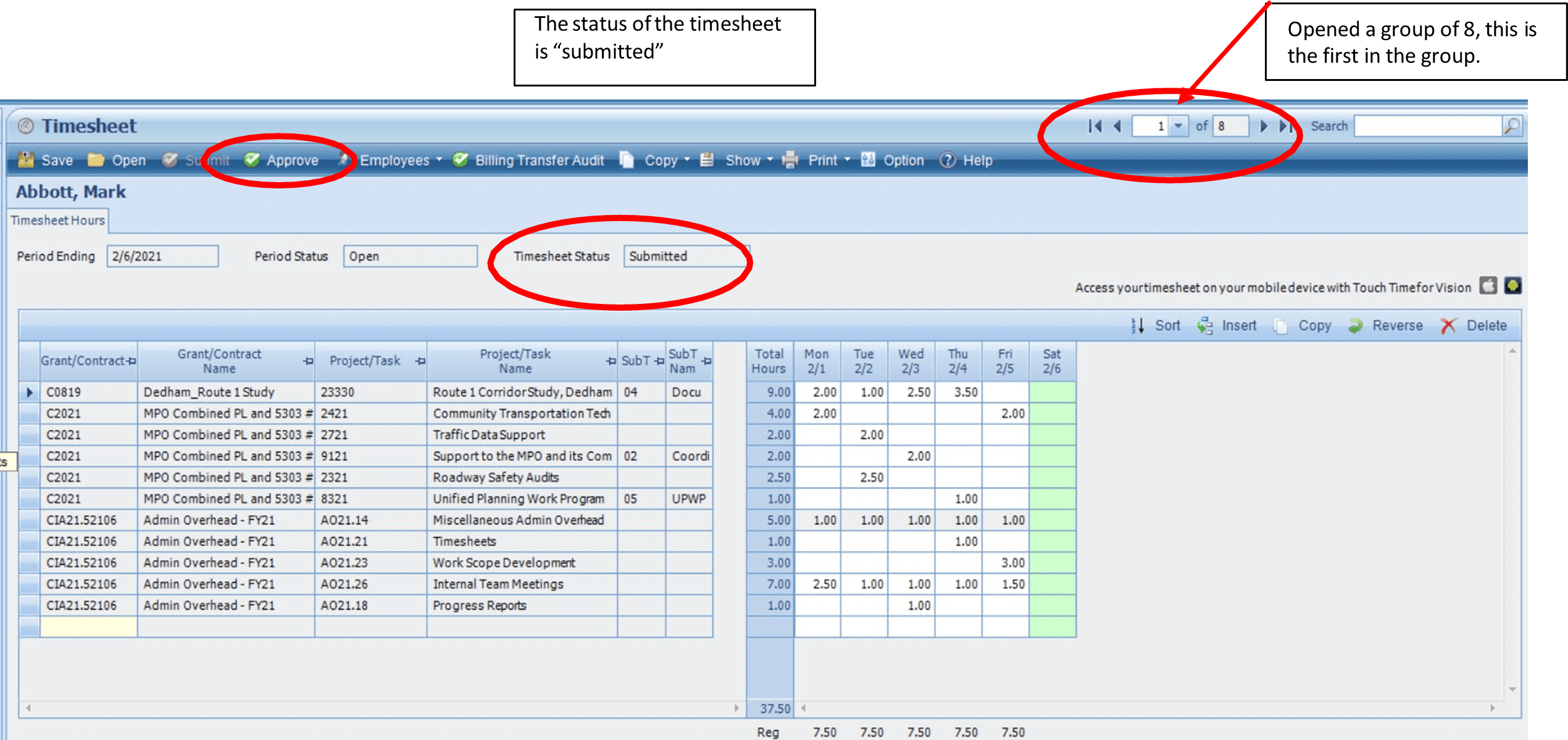
- As a timesheet approver, you have the ability to edit the timesheet yourself, or send back to employee to correct the timesheet themselves. If the employee is going to change their own timesheet, the status needs to change back to in progress. You can change the status, aka, release the timesheet, by making a change on the timesheet, and then “saving” the file. At that time, the status will revert back to “in progress”, and the timesheet is available for the employee to change, and resubmit.
- If you are making the change, edit line items at your discretion. Once the change is complete, Save then Submit the timesheet. Your password will be required to submit a timesheet.
- If the timesheet is ready to approve, click the approve tab at the top of the timesheet.
- In this example, once the first timesheet is approved, the status will change from “submitted” to “approved”, and you will be moved to the next timesheet that needs review. Continue this process until all timesheets have been approved.
If you have any questions, please contact the Finance and Operations Group for assistance.