Use Webcams and Mobile Presentation System in Conference Rooms
This page contains instructions for:
- Setting up the meeting Owl
- Using the Webcam on the mobile presentation system and in the small conference room
Instructions for Setting Up the Meeting Owl
In the large conference room, you will find a Meeting Owl webcam sitting on the conference room table. It is plugged into an electrical outlet.
To use the webcam in the large conference room, take the following steps:
Plug the HDMI cable into your laptop. If you do not have an HDMI port, please use one of the adapters provided in the large conference room or see the IT staff.
Turn on the TV using the remote control.
Once your laptop displays on the screen, connect the USB C cable from the Meeting Owl to your laptop.
Go to www.owllabs.com/download to install the Owl Labs app on your laptop.
Scroll down until you see the Meet the Meeting Owl app. Under the Desktop icon, select either Windows Direct Download, if you have a Windows laptop, or select Mac App Store, if you have a MacBook.
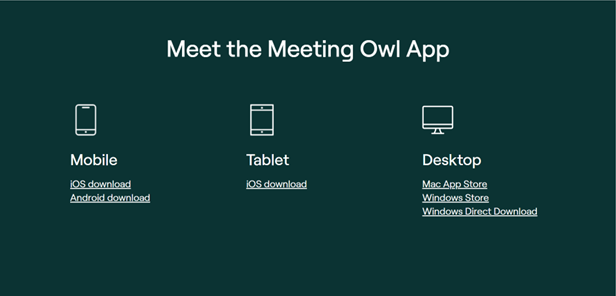
Once the installer has finished downloading, run the installer.
Select Install once the Install Meeting Owl display box appears.
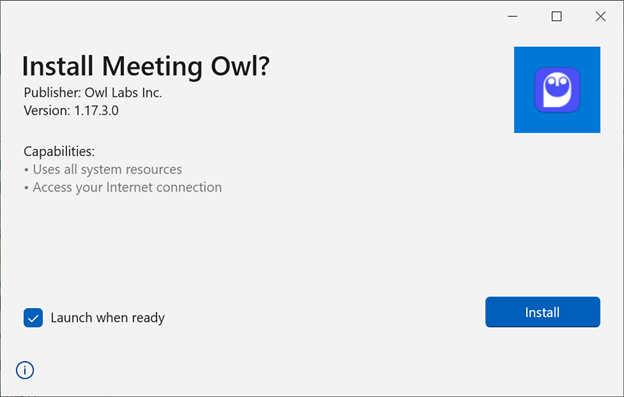
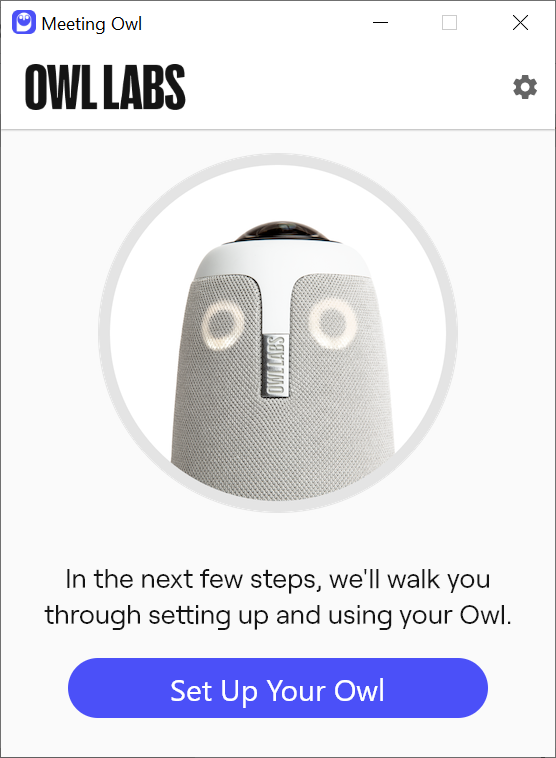
Select Set Up Your Owl.
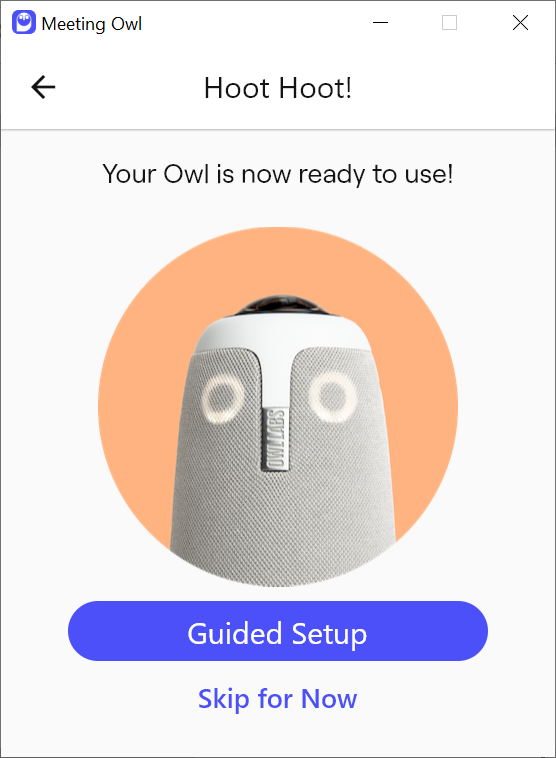
Select Guided Setup.
Select Next.
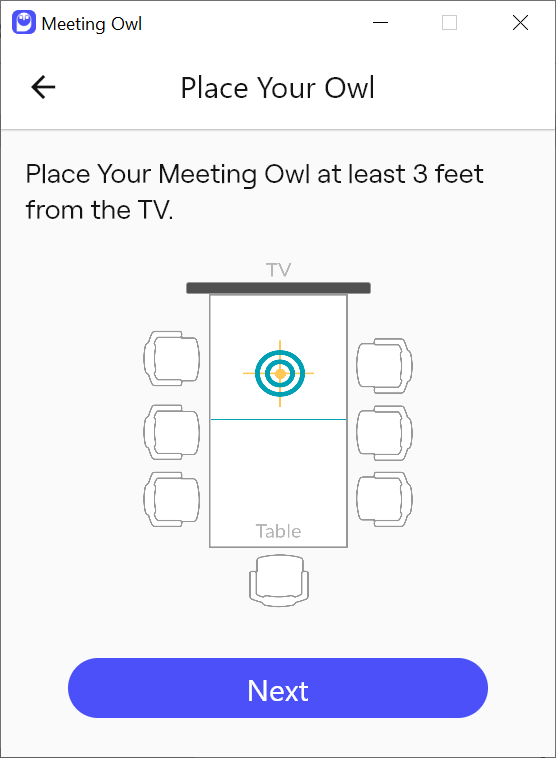
Select the video conference software that you plan to use with the Meeting Owl and then select Next.
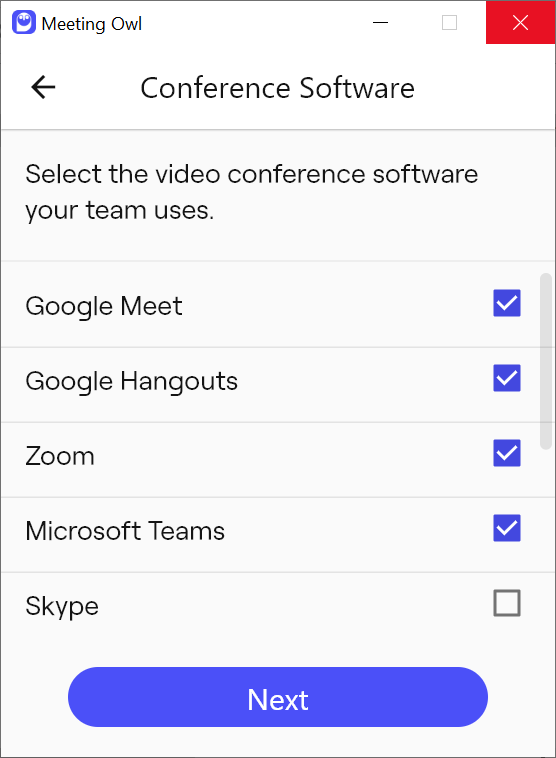
Select Finish Setup.
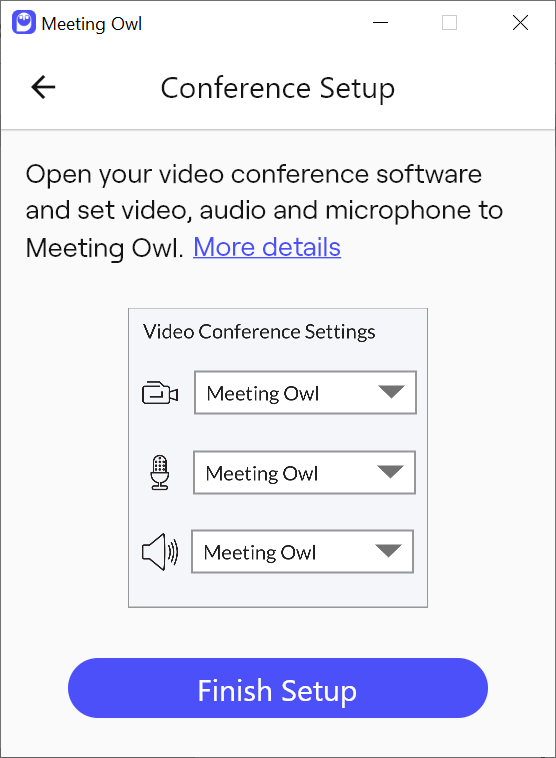
Once the installer finishes, you can connect to your virtual meeting via your video conferencing software, Google Meet, Zoom, or Microsoft Teams.
Once your meeting has concluded, please disconnect the USB C cable and HDMI cable from your laptop.
If you wish to use the Meeting Owl outside of the CTPS conference room, you can connect the Meeting Owl to your laptop using the instructions listed above without the HDMI connection to a screen.
However, please check the large conference room calendar to see if a meeting has been scheduled where the meeting owl will be used.
In all cases, please reserve the Meeting Owl via Google Calendar. See the Book Conference Rooms page on the Intranet for instructions.
Once you have finished using the Meeting Owl, please return the Meeting Owl to the large conference room.
Use the Webcam on the Mobile Presentation System and in the Small Conference Room
In the small conference room, there is a screen mounted to the wall and a webcam on the table, along with a Raspberry Pi.
To use the webcam for meetings, connect the HDMI cable from the screen to your laptop, and connect the webcam USB cable to your laptop.
To use the Raspberry PI to run a meeting instead, verify the HDMI cable from the screen is connected to the Raspberry PI and that the webcam is connected to the Raspberry PI.
Login with the username presenter and the password M8tt1ng$
Open Google Meet or Zoom to start your meeting. The webcam should start showing your video automatically. If it does not make sure the webcam is connected via its USB cable to the USB port on the computer.
For the audio portion, the webcam will be sufficient in the small conference room as well as a small area in the office.